4. Command Line Interface
KNet CLI is a primary interface for the user to Create/delete/manipulate the Topology. Currently it supports the following commands.
Help
Cleanup
CreateTopology
DeleteTopology
GetTopology
DeleteNode
DeleteSwitch
AdminDownLink
AdminUpLink
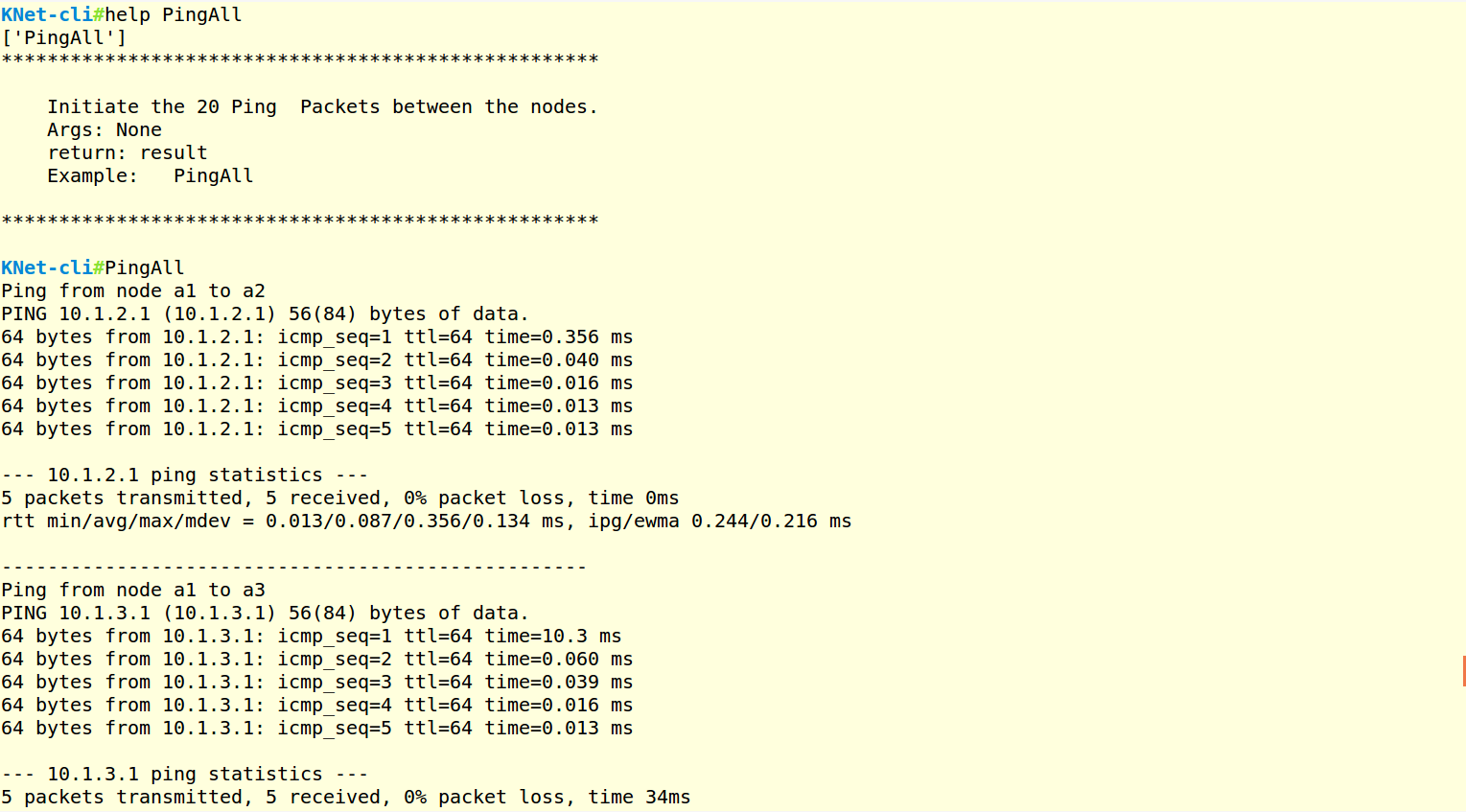
PingAll
Ping
Exit
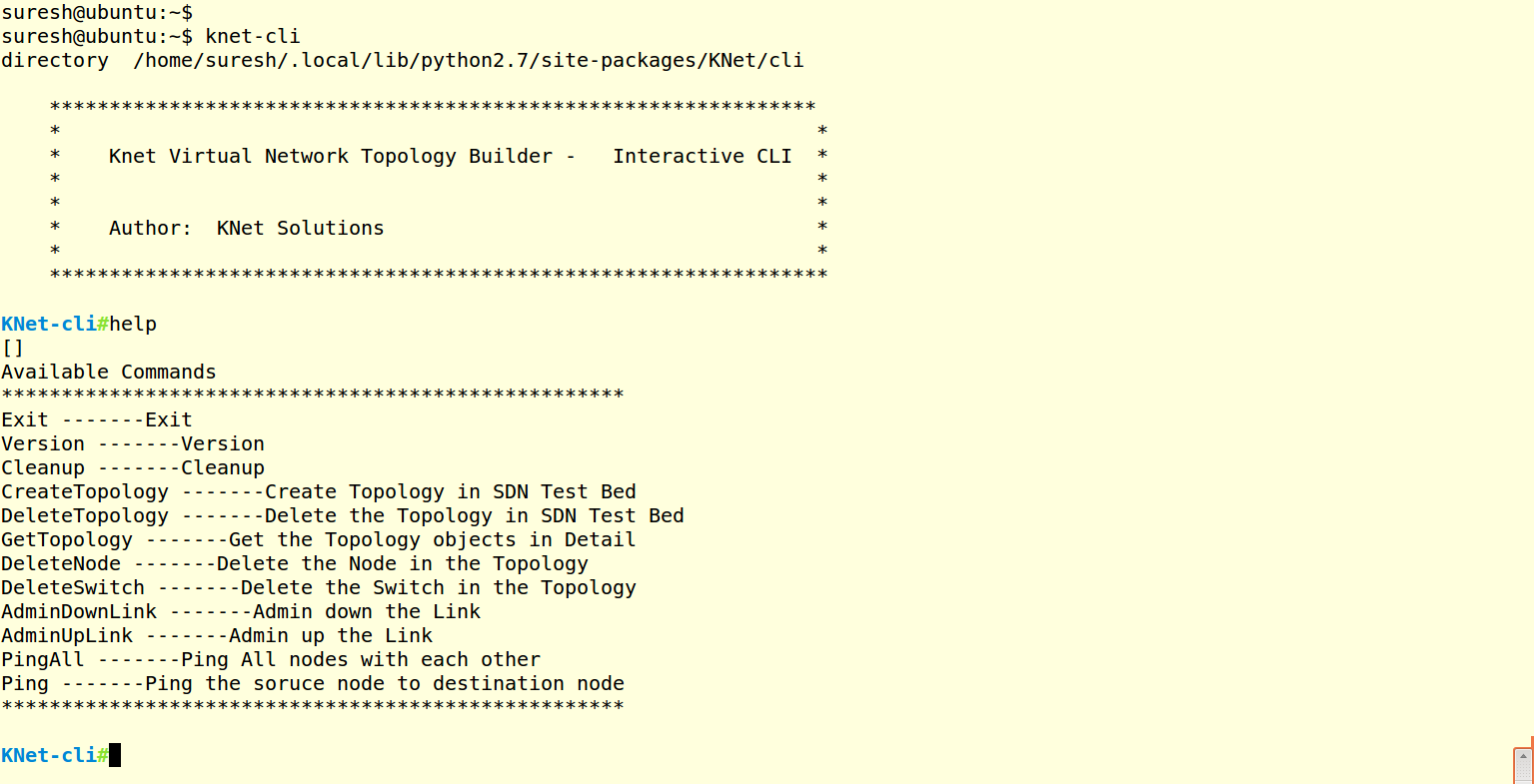
4.2. Help commands
Help Command, lists the available commands.
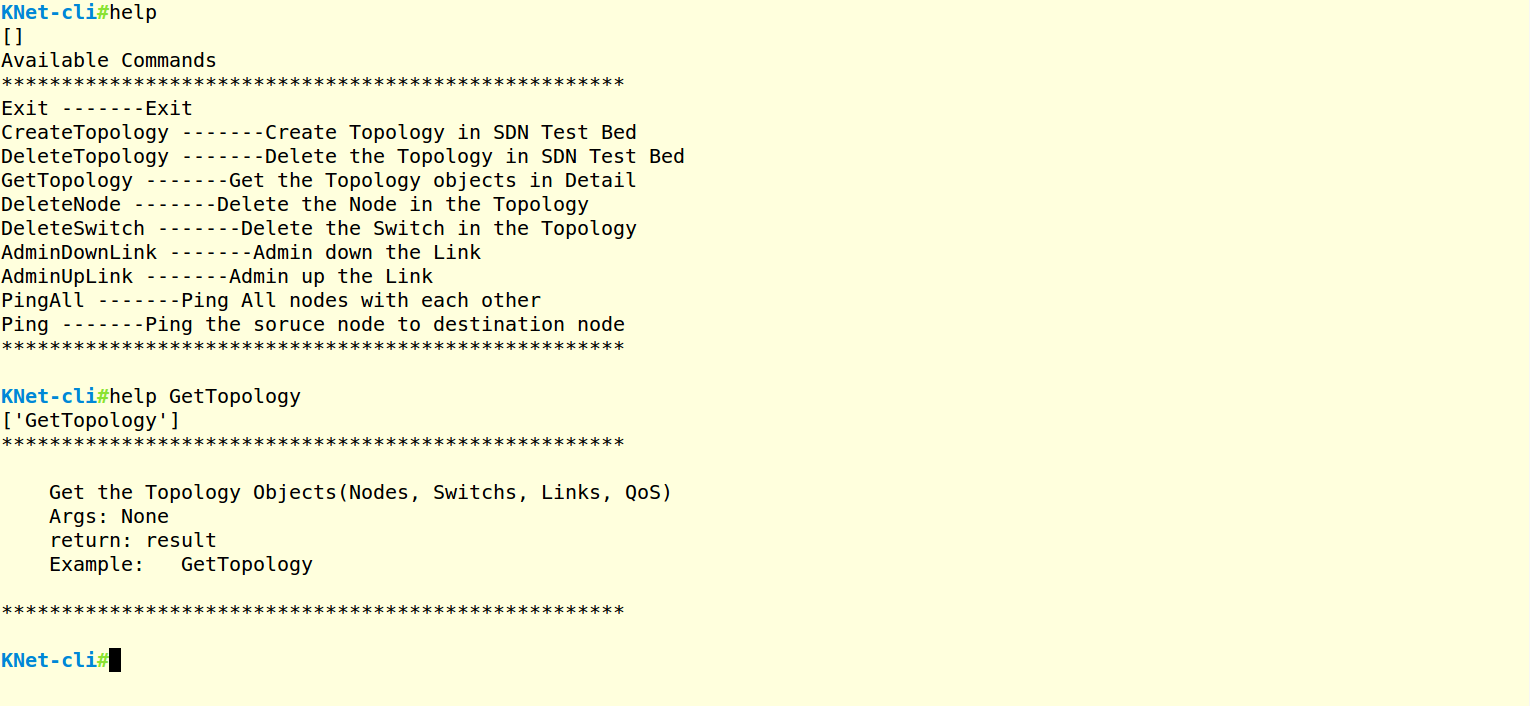
Help <command name> gives the detailed help for a given command
Help
Help <command name>
Screeshot:
4.3. CreateTopology
CreateTopology command creates a Topology. The Topology input file is defined in YAML format. User can easily define any complex topology by writing the YAML file.(Refer: Topology_file section)
There are few example topologies availale in https://github.com/knetsolutions/knet-example-topologies in the repository.
CreateTopology <Topology file>
Note: Topology file needs to be specified in absolute path. Example; /home/ubuntu/mytopology.yaml
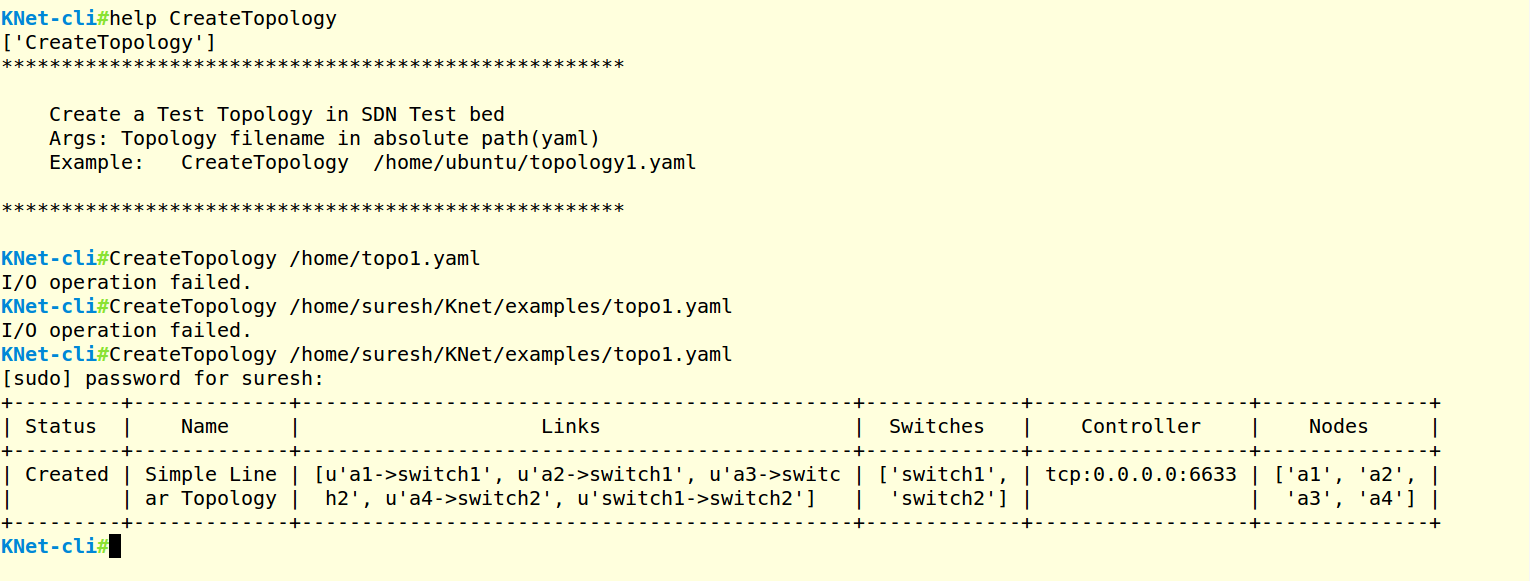
Note: If the Topology file name or Path is not correct, you will see “I/O operation failed” Error.
4.4. GetTopology
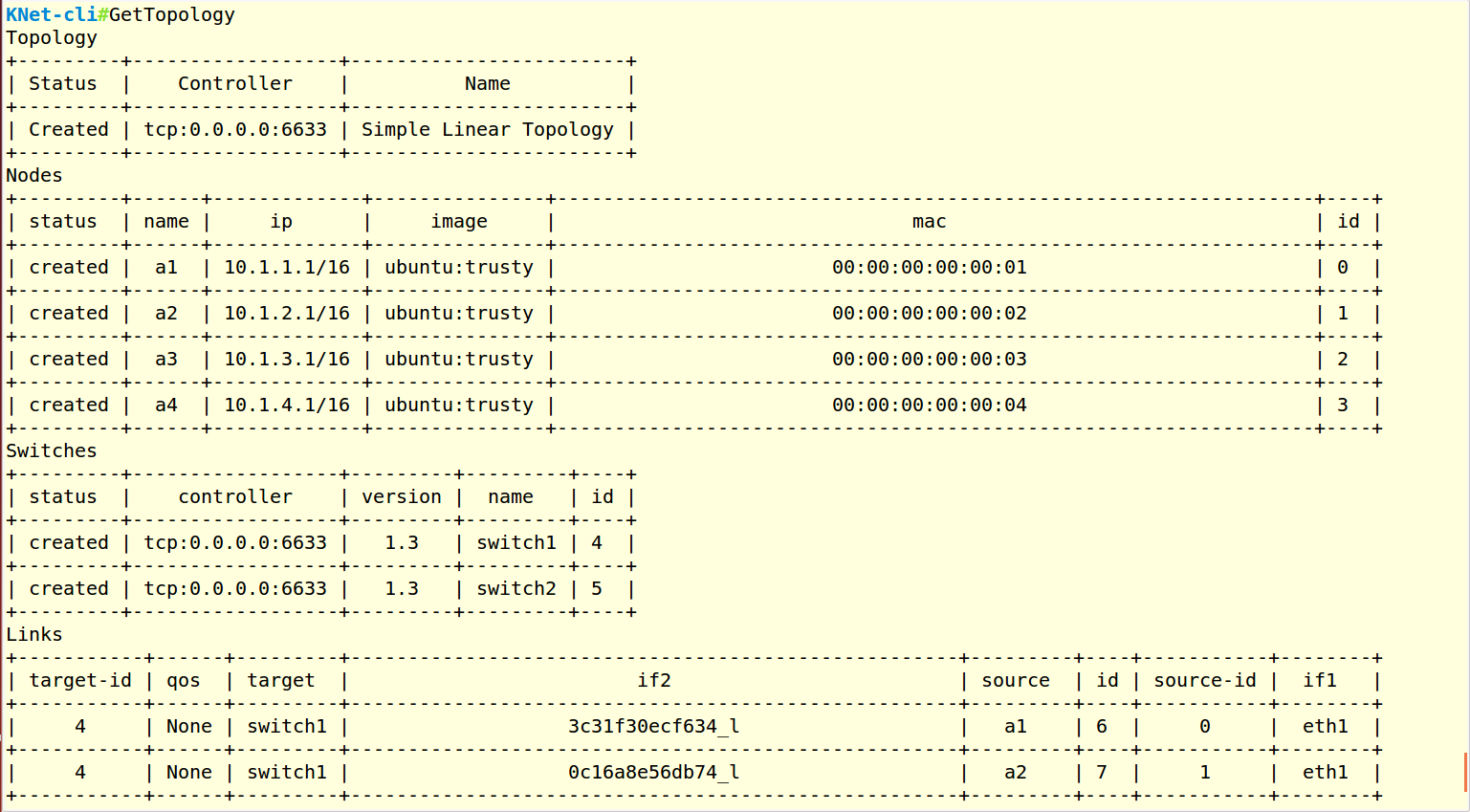
GetTopology command gives the detailed information of the Topology, such as Node details(Name, IP, Mac, ID), Switch details(name, datapathid), Link Details(Interface name, Src, Destination).
GetTopology
4.7. Ping
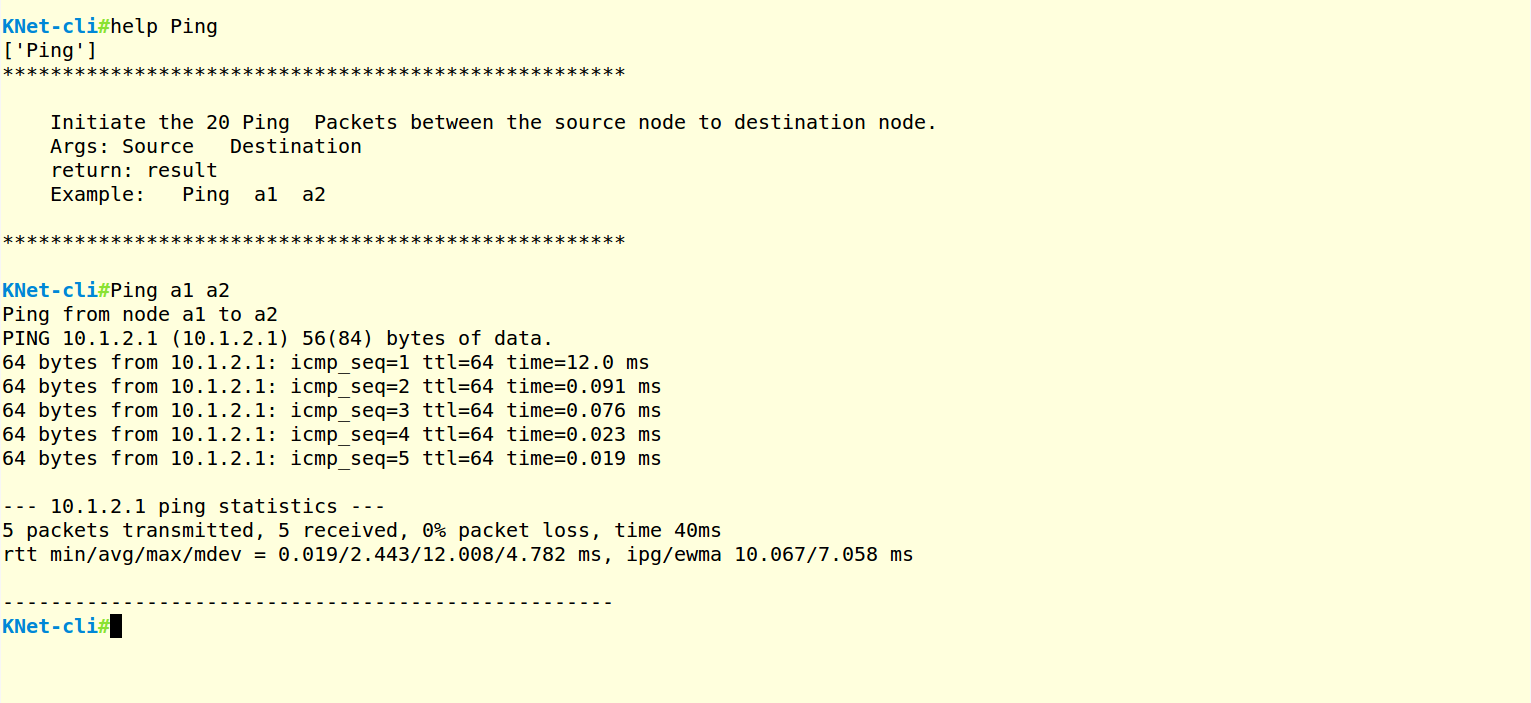
Ping command, generates 5 ping packets from source node to destination node.
Ping <source node> <destination node>
Screenshot:
4.8. AdminDownLink
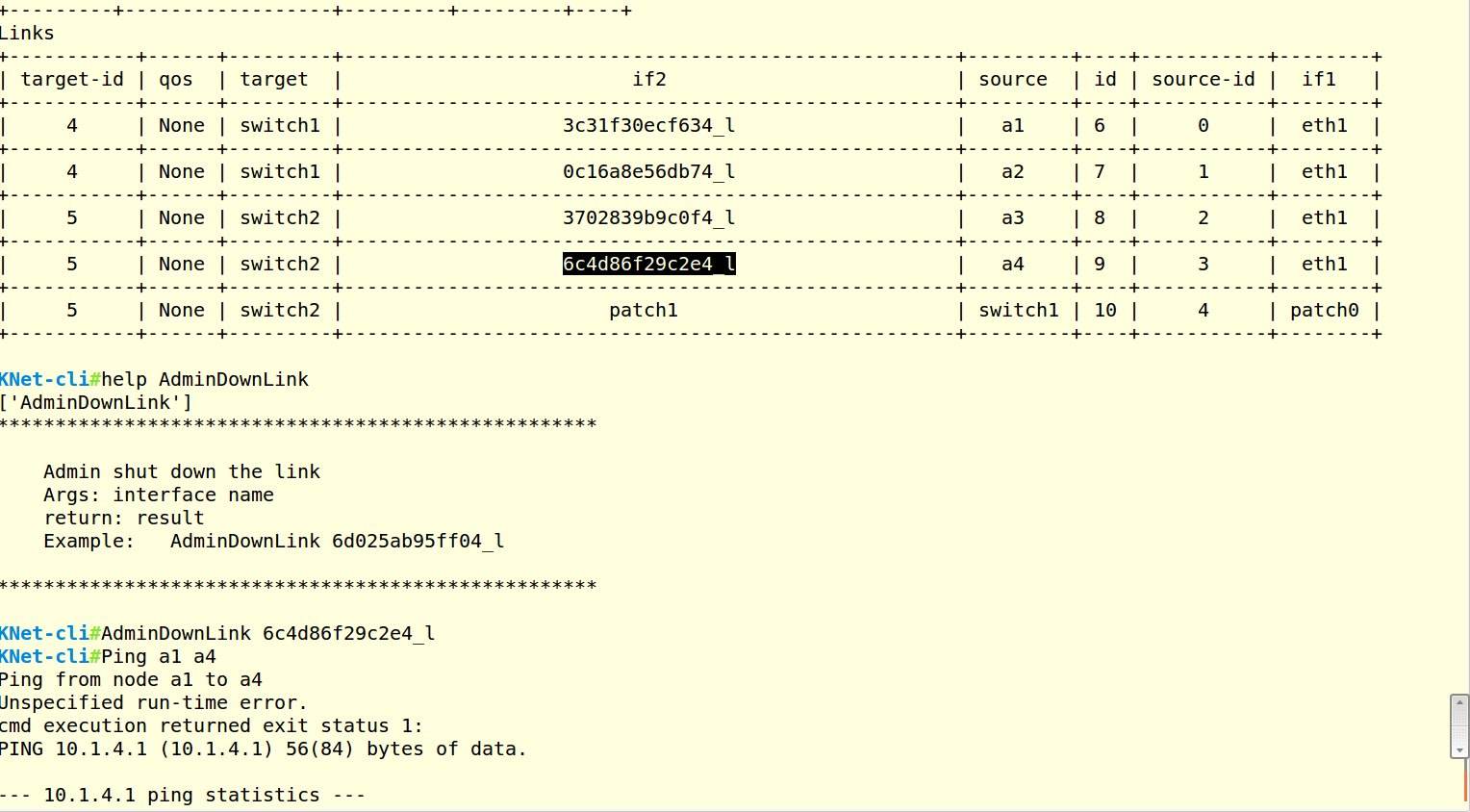
AdminDownLink command downs the particular link. For example, if want to disconnect the link between node1 to node2, we can use this command.
- Identify the Interface name for the link using GetTopology Command
- Use AdminDownLink command with identified interface name to shutdown the link.
AdminDownLink <interface_name>
In this below example, down the a4 interface.
Screenshot:
4.9. AdminUpLink
AdminUpLink command brings up the link back.
AdminDownLink <interface_name>
In this below example, bring up the a4 interface.
Screenshot:
4.10. DeleteTopology
DeleteTopology command deletes the entier topology(nodes, switches, links)
DeleteTopology
Screenshot:
