3. Quick Start
In this QuickStart section, we see few quick steps to install and execute the sample topology with RYU Controller.
KNet is compatible with Python 2.7 only.
KNet is currently supported and Tested in Ubuntu 16.04 and 14.04 versions.
We have used Ubuntu 16.04 OS for the below demonstations. (The procedure is same for Ubuntu 14.04 OS also)

3.1. Installation
- Install the Prerequisties. Copy and Paste the below command in the Terminal
curl https://raw.githubusercontent.com/knetsolutions/KNet/master/install.sh | sh
This command will install the Docker, openvswitch and required packages.

- Once Prerequisties are installed. Execute the below commands to verify the docker and openvswitches are installed.
sudo docker images
sudo ovs-vsctl show

- Install the KNet Topology Builder with below commands,
pip install knet

- Install the KNet WebUI & and Verify the WebUI in browser
git clone https://github.com/knetsolutions/knet-ui
cd knet-ui
python ui/webserver.py >/dev/null 2>&1 &
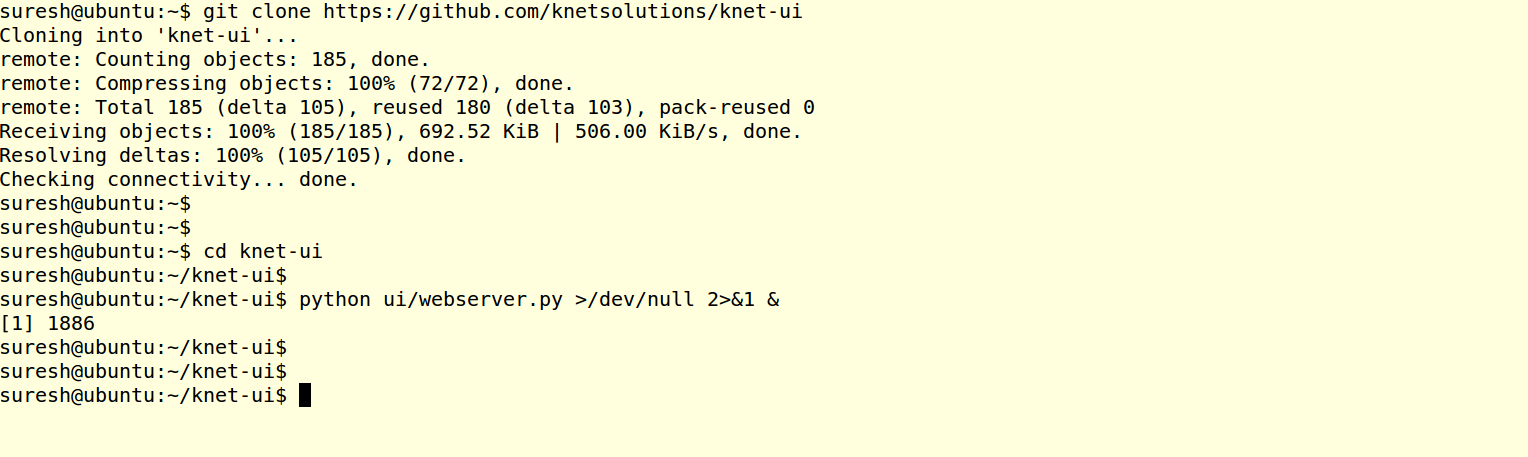
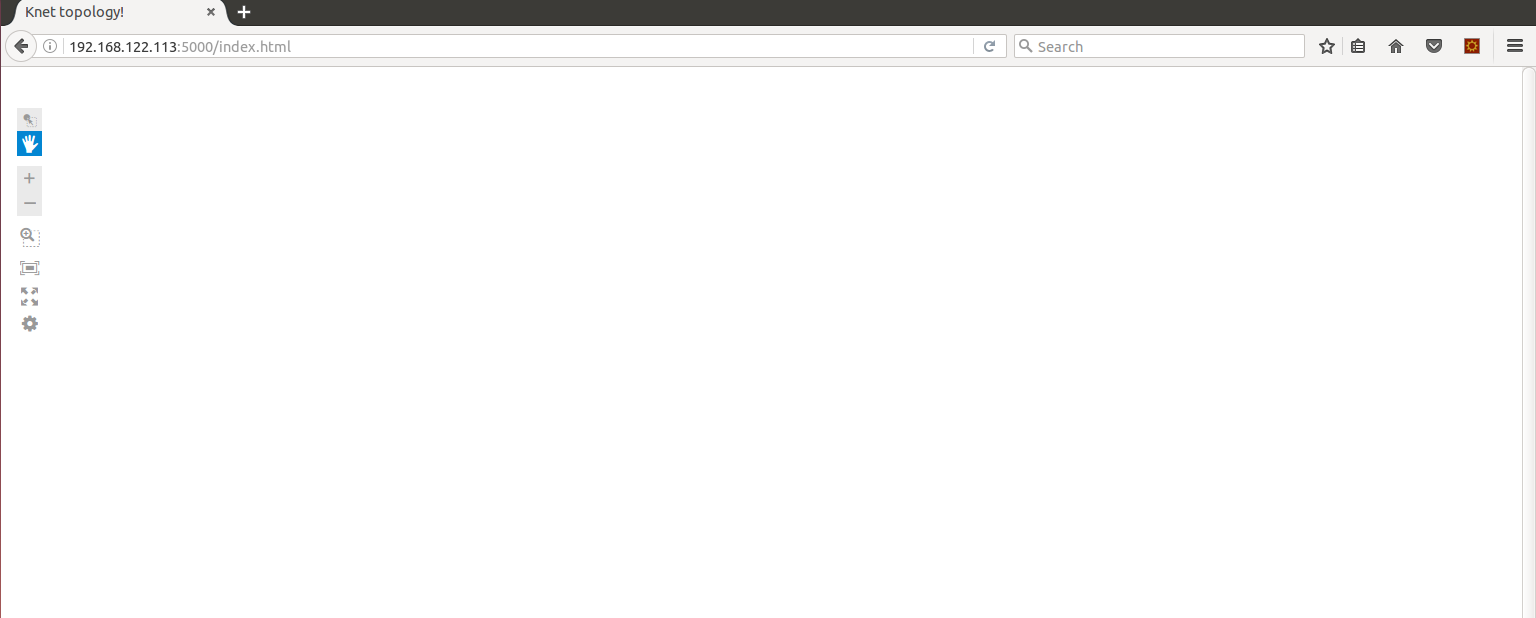
Open FireFox/Chrome, with URL: ĥttp://ip:5000/index.html, and see the empty topology page.
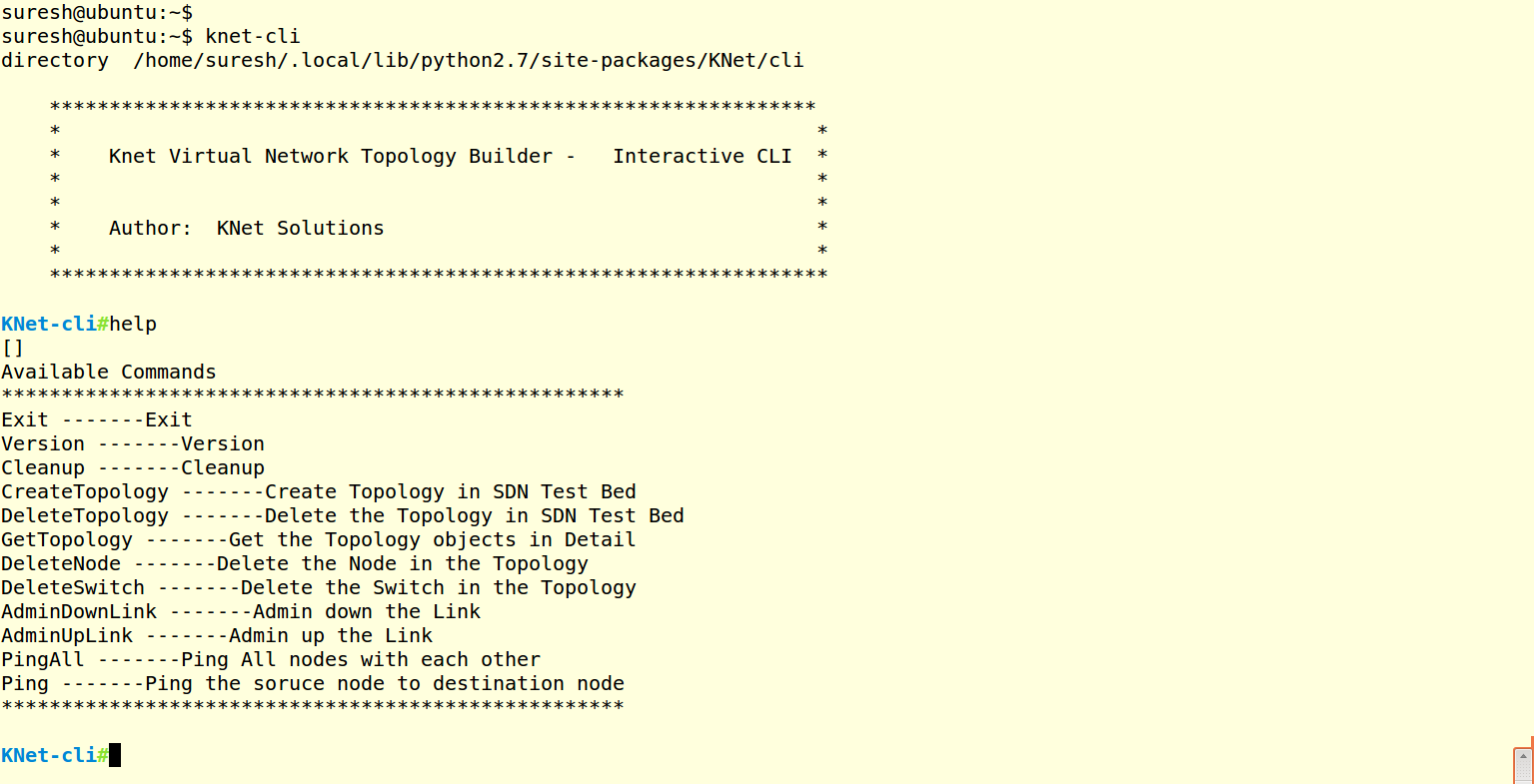
- Start the KNet CLI and verify the commands
knet-cli
3.2. Create a sample Topology and Testing
Now Let us Create the Sample Star Topology with RYU SDN Controller.
Example topology files are available in https://github.com/knetsolutions/knet-example-topologies
Star Topology file is available in topo0.yaml
3.2.1. Setup the RYU SDN Controller
1. Install the RYU SDN Controller Open the another terminal and execute the below commands,
cd $HOME
export LC_ALL="en_US.UTF-8"
virtualenv ryu
. ryu/bin/activate
pip install ryu

- Run the Ryu Simple L3 Switch application,
ryu-manager ryu/lib/python2.7/site-packages/ryu/app/simple_switch_13.py

3.2.2. CLI
- Create a Topology as below in the CLI
CreateTopology /home/suresh/knet-example-topologies/1.0/topo0.yaml
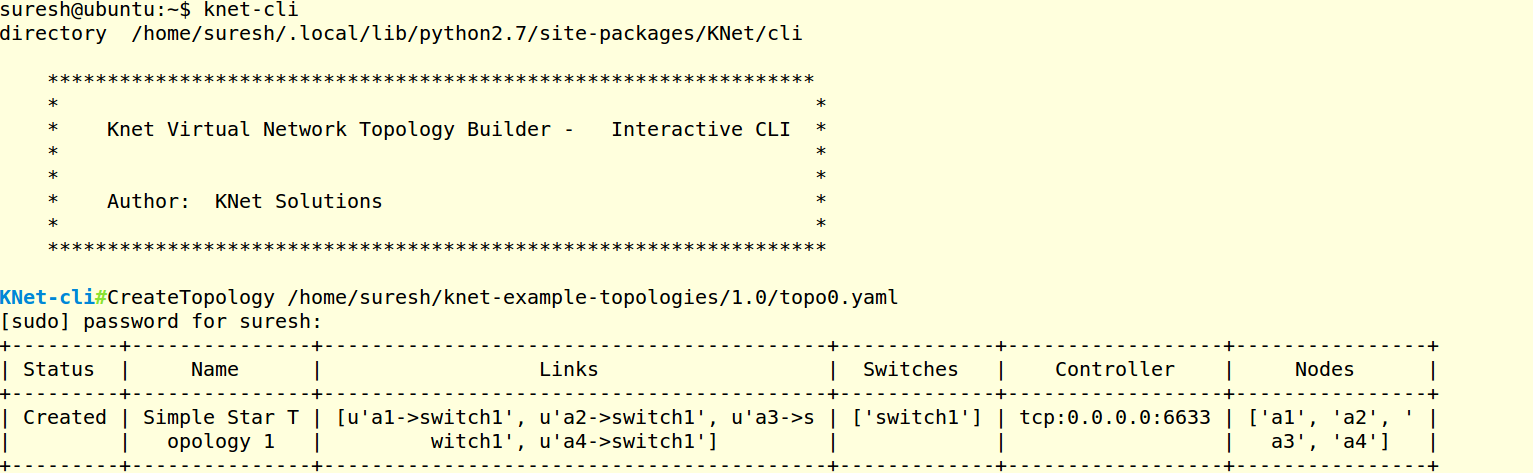
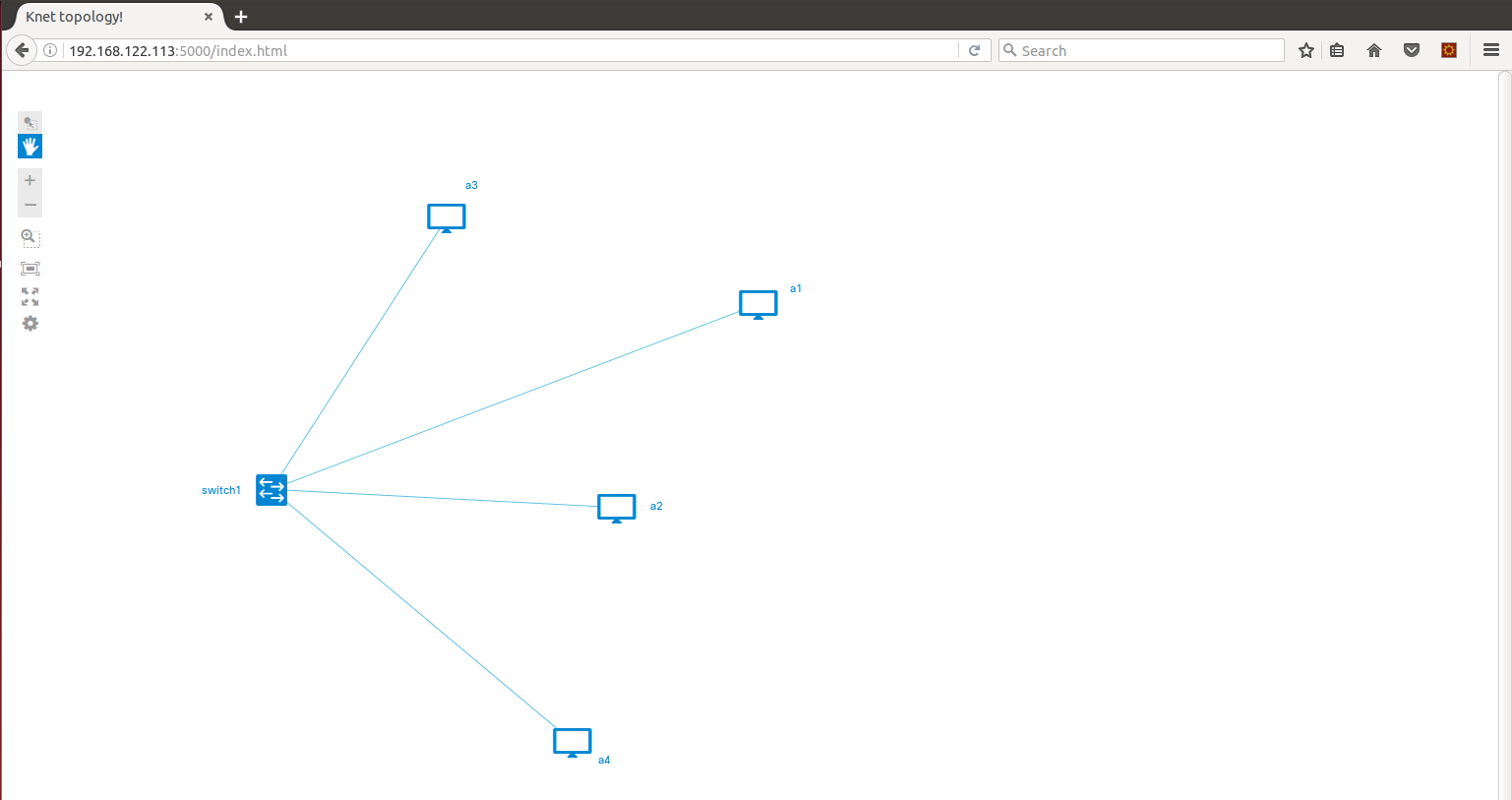
Verify the topology digram in UI.
ĥttp://ip:5000/index.html
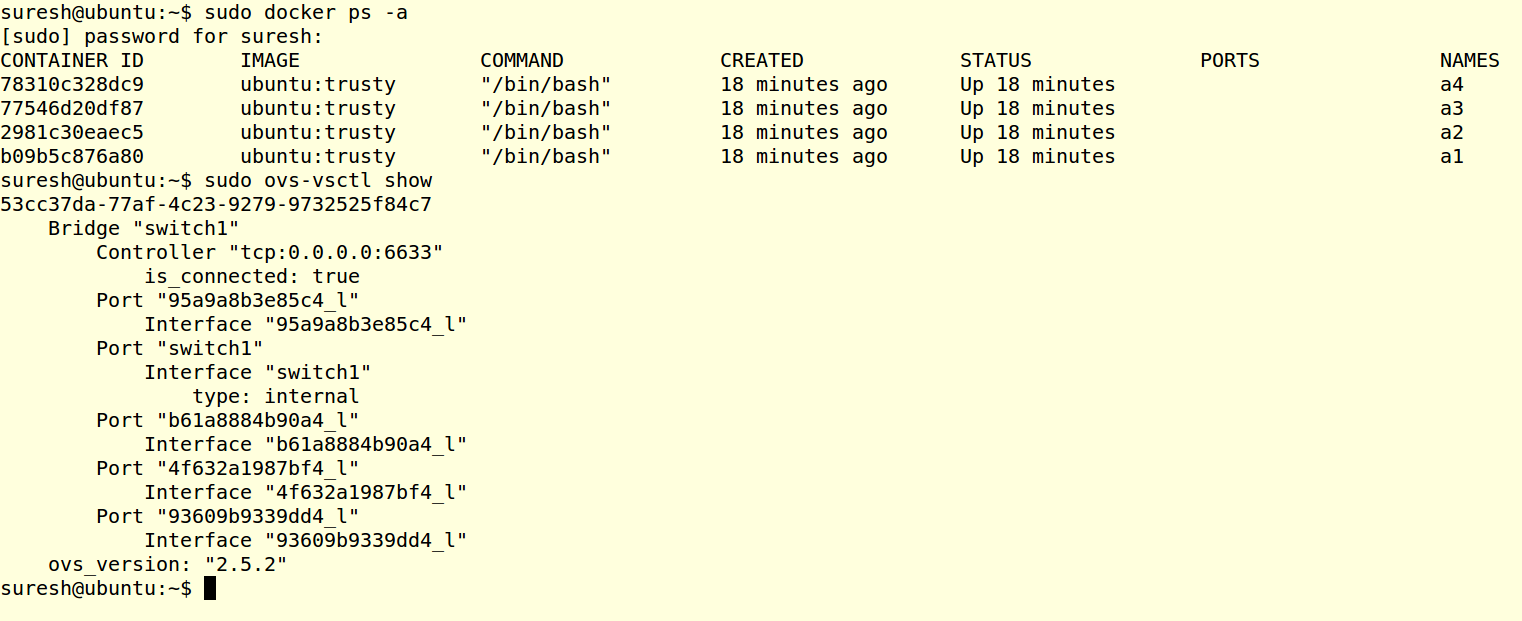
- Open the another terminal, and verify the switches and nodes. Run the below commands in the new terminal and see the created nodes and switches.
sudo docker ps -a
sudo ovs-vsctl show
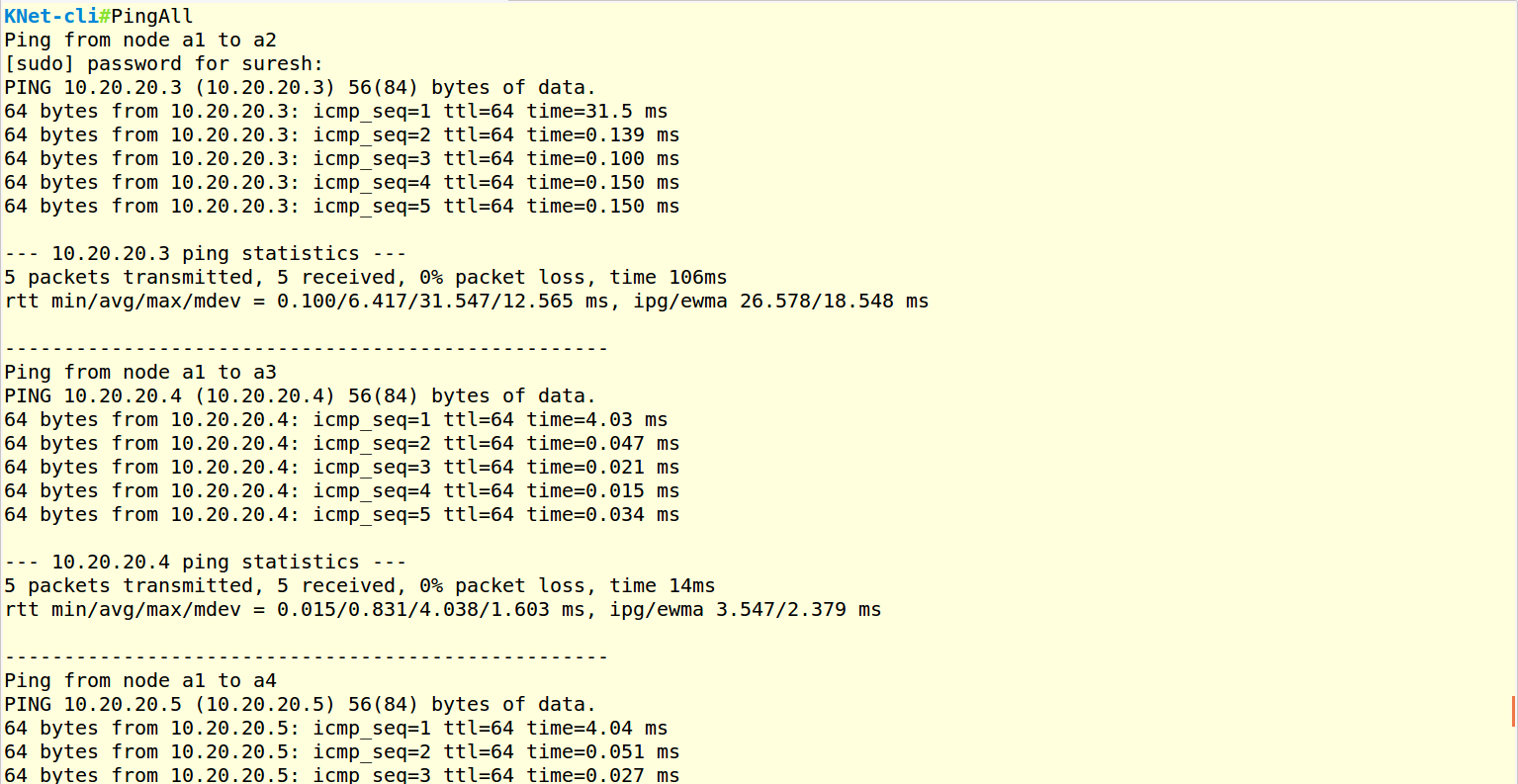
- Trigger the PingAll command from the KNet CLI and check the output Each node pings each other nodes.
PingAll
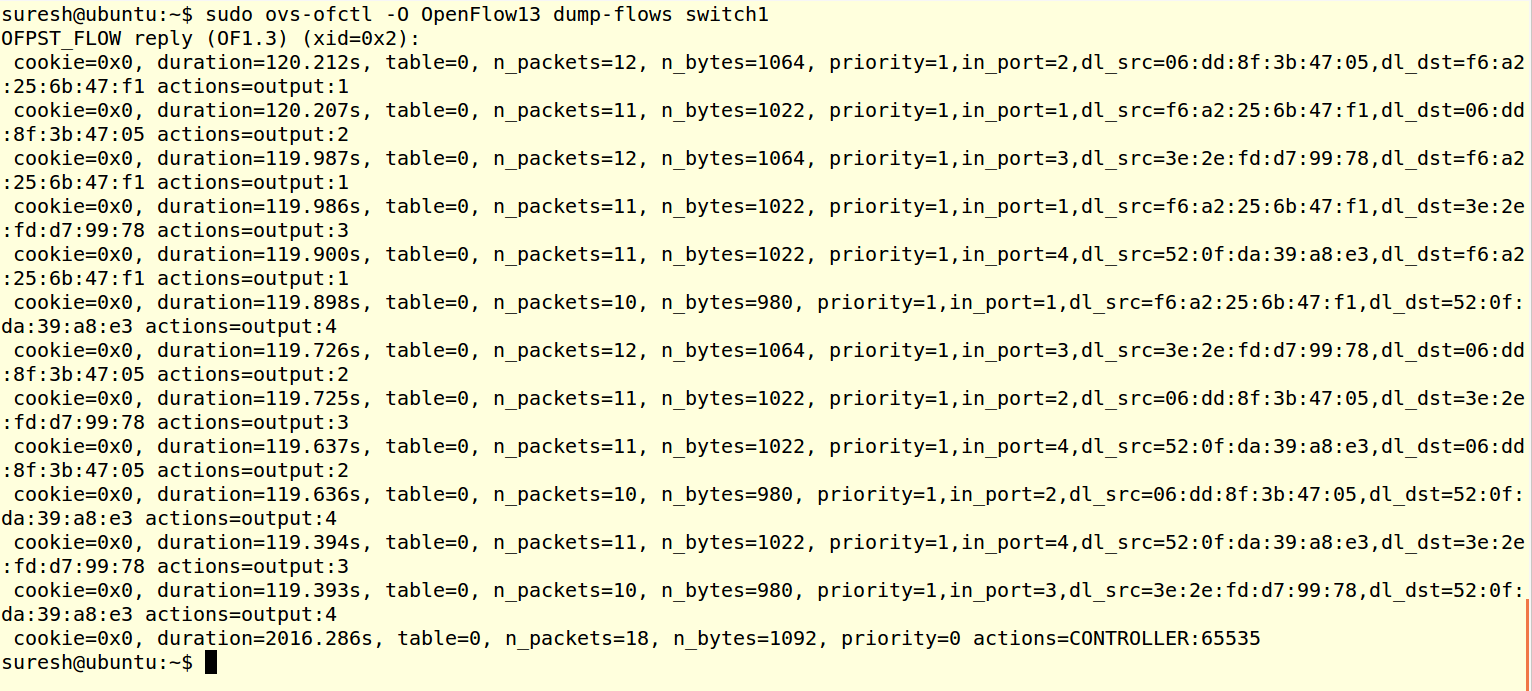
- Verify the OVS flows with the below command,
- sudo ovs-ofctl -O OpenFlow13 dump-flows switch1
3.3. How to Run the IPERF Tests:
- Login to the Node and Install the iperf package
- Refer How to Install the package(application) in the Node:.
- Execute the iperf commands in the nodes.
3.4. Delete the Topology
- In the KNet CLI, Execute the below command
DeleteTopology

- Exit from the CLI by “Exit” Command